3 Set Up Your Enterprise
If you haven't created a enterprise workspace yet, please create one first.[[1 Create Enterprise Workspace]]
After the enterprise workspace is successfully created, the administrator can log in to the Admin Portal to define the structure of his or her own enterprise/organization and invite members to join the enterprise space.
Define the organizational structure
In the enterprise workspace, administrators can create multiple levels of departments and invite members to join the department.
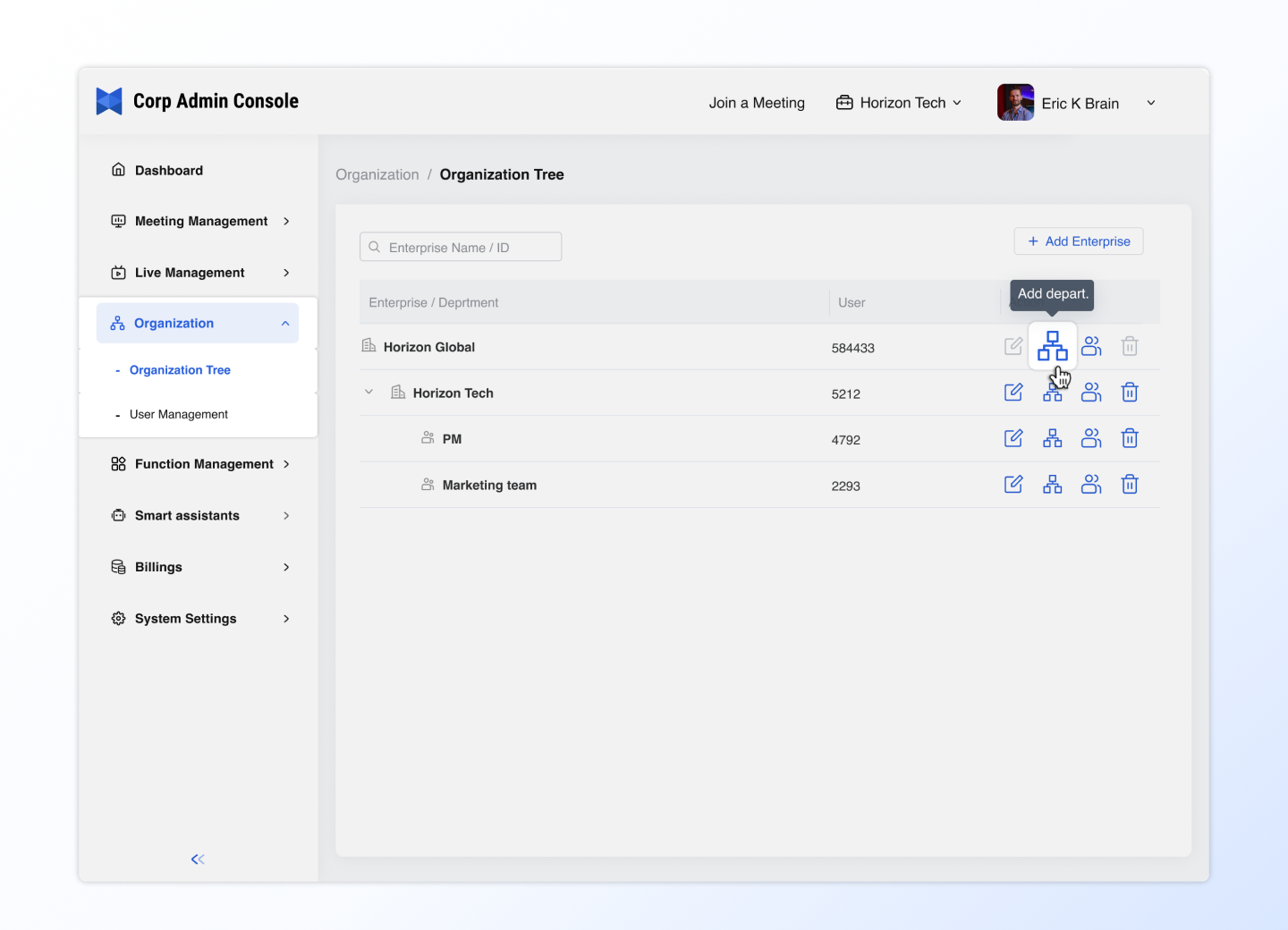
- In the enterprise workspace, click Organizations - Organization Tree
- Then click Add department
- Fill in the department name, parent department and other information to complete the creation of the department
Tips:
- If you subscribe to the Enterprise plan, you can also click +Add Enterprise to create a sub-enterprise
- Sub-enterprises and top-level enterprises are independent enterprise spaces
- If you want to create a department under a department, you can click the Add department button on the far right of the department entry line to create a sub-department.
Invite members to join the space
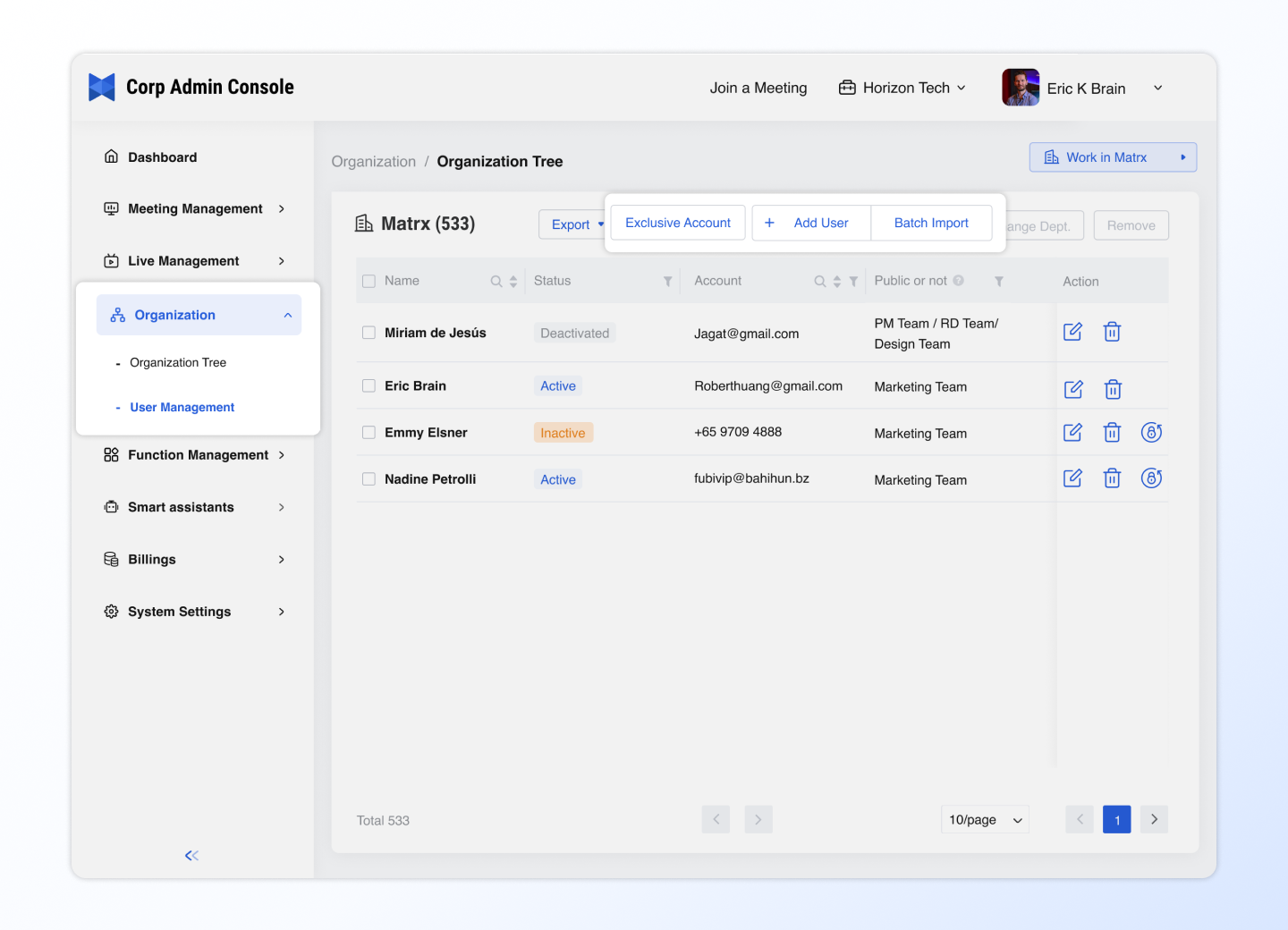
In the enterprise workspace, the administrator can click Organizations - User Management to invite members to join the department. There are three ways to invite members to join the enterprise
- Invite members one by one
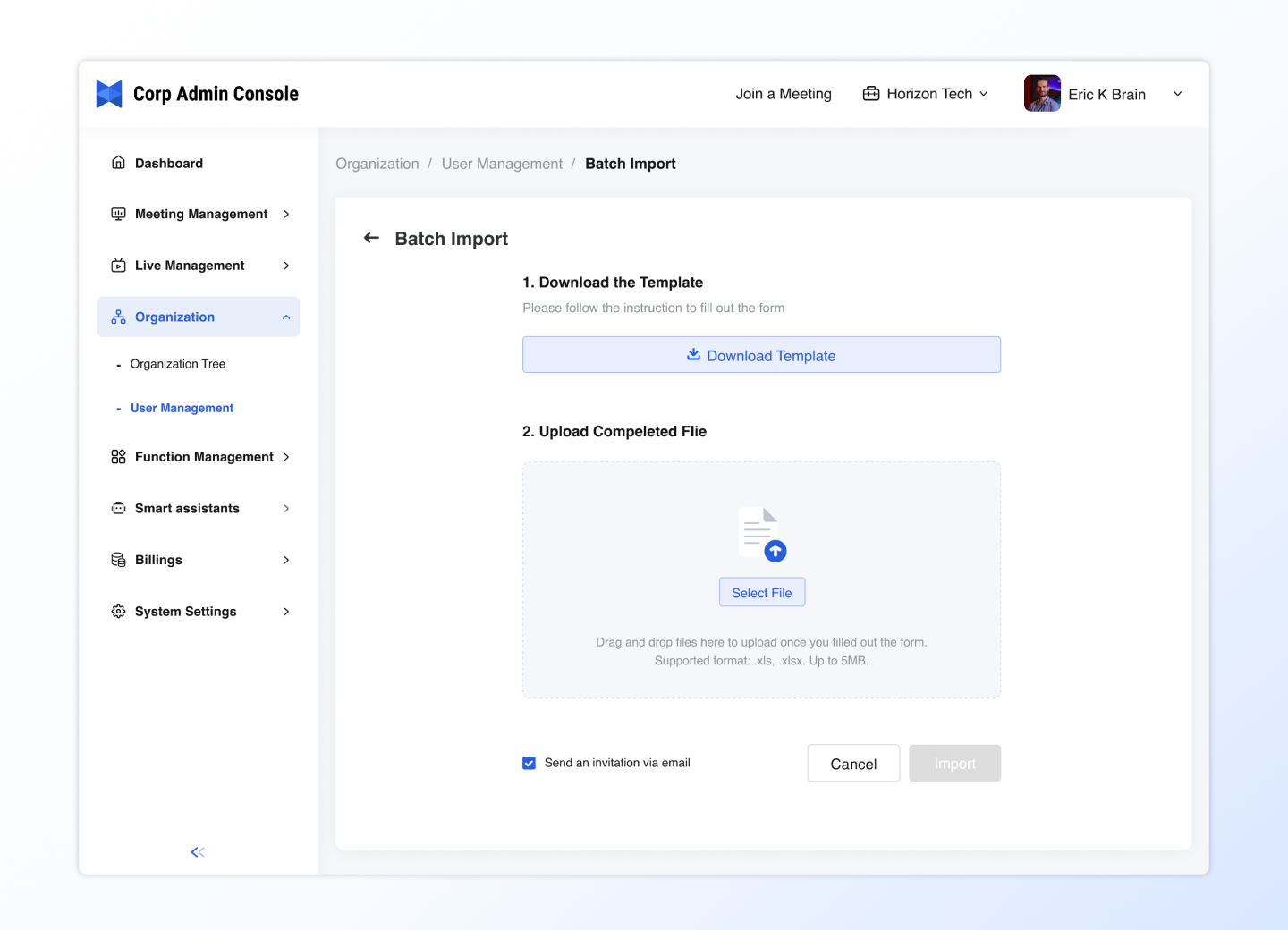
- Batch import members
- Distribute exclusive accounts
Invite members one by one
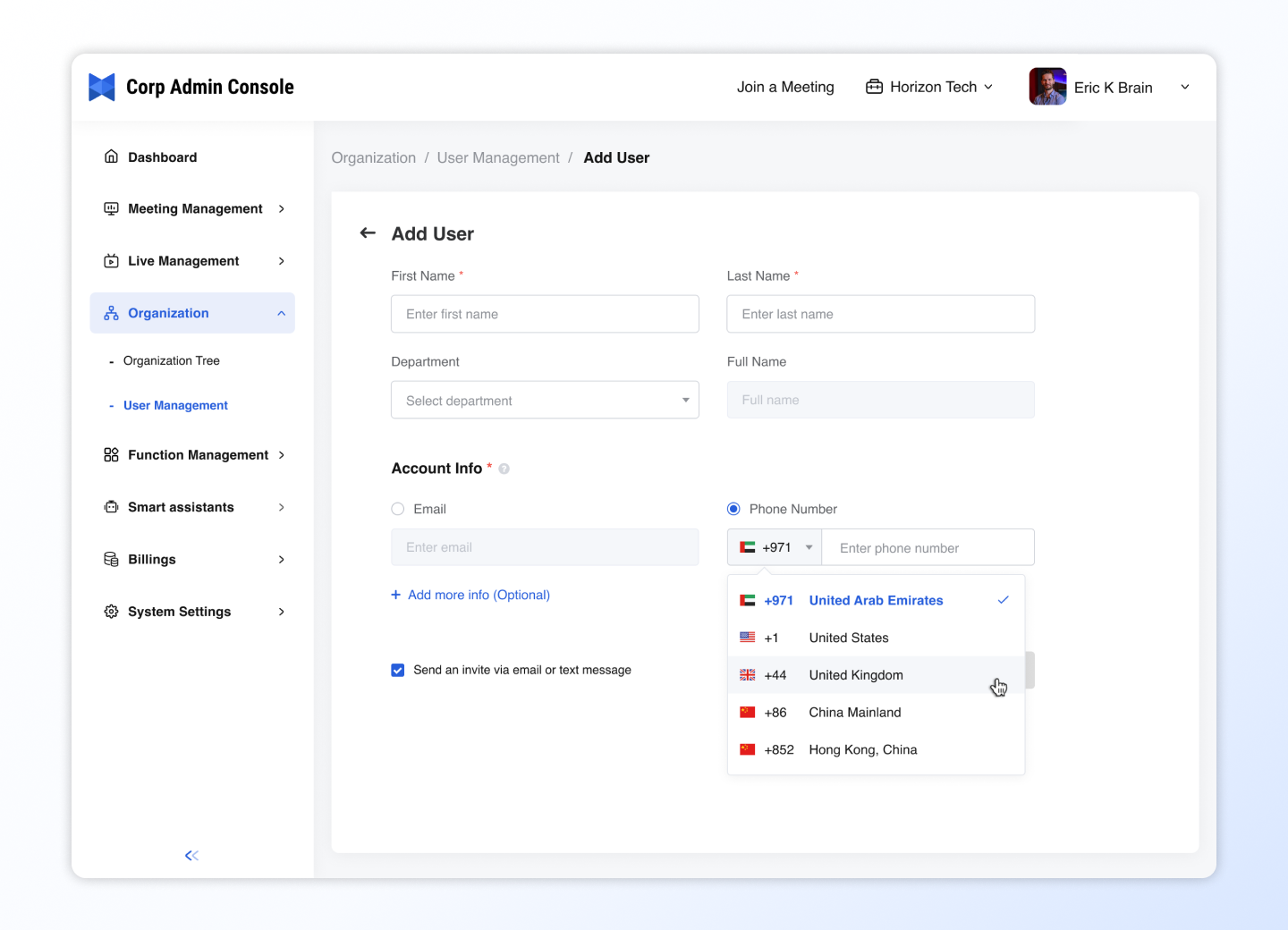
Click + Add User, fill in the member information, and invite members to join the enterprise.
The invited members will receive an email invitation. They need to click and agree to join the enterprise to complete the joining process.
Batch import members
Download the import template, fill in the member information in Excel, and batch import multiple user information to complete the member invitation
Distribute exclusive accounts
Or you can also create exclusive accounts and distribute them to corporate members. To create a unique account, you need to
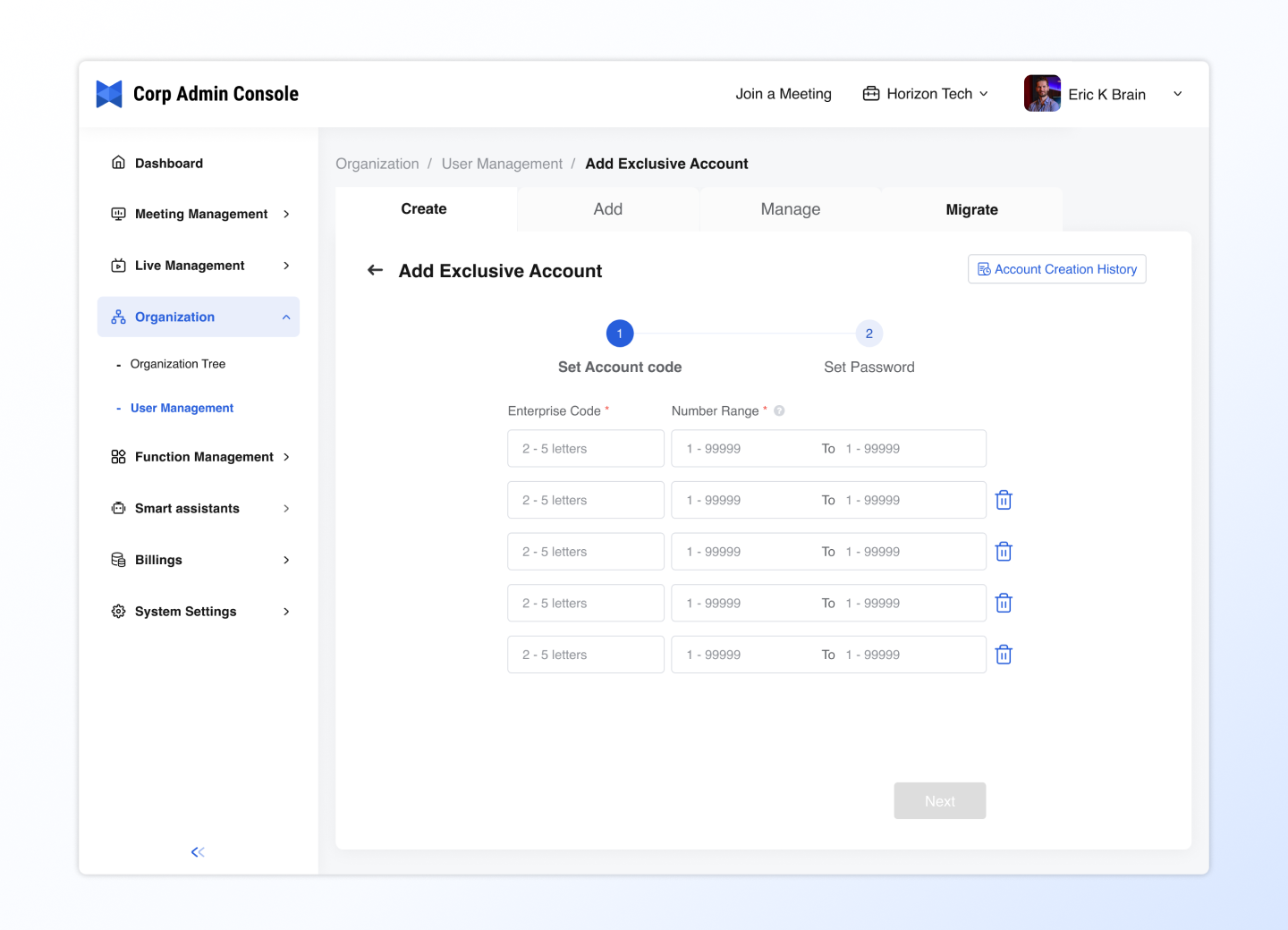
- Set the enterprise code
- Enter 2~5 English letters (such as Matrx, HR001)
- Can be used as enterprise unique identification or department code
- Set the number range
- Support 1~99999 continuous number range (such as 200~239)
- The system automatically generates an account: enterprise code + 4 digits (such as Matrx0200~Matrx0239)
- Set the initial password
- All accounts use unified initial password
- Members can modify it after the first login 📌 Example:
- Enterprise code: Matrx
- Number range: 200~239
- Generate account: Matrx0200, Matrx0201...Matrx0239
💡Tips:
- No need to collect email addresses, directly create in batches
- Members can self-modify passwords to ensure security
- Support enterprise/department hierarchical management (different codes for distinction)